
Milvus with SQL: Queries, ORM and Tools
Java applications typically use the Milvus SDK to write data and search vectors. For relational database developers, SQL and JDBC are more familiar. jdbc-milvus brings that workflow to Milvus:
SELECT id, title, score FROM intro_articles -- score is squared L2 distance; smaller is closer
WHERE category = 'java'                    -- Search only within the Java category
ORDER BY embedding <-> [1,0] LIMIT 2;       -- Return the two nearest vectors
Add dbVisitor to express the same search with entity mapping and a query builder:
@Table("intro_articles")
public class Article {
    @Column(primary = true)
    private Long id;
    private String title;
    private String category;
    private List<Float> embedding;
    // Standard getters and setters omitted
}
LambdaTemplate lambda = new LambdaTemplate(conn);
List<Article> articles = lambda.query(Article.class)
        .eq(Article::getCategory, "java")
        .orderByL2(Article::getEmbedding, List.of(1F, 0F))
        .initPage(2, 0)
        .queryForList();
Milvus through SQL
jdbc-milvus is developed by the dbVisitor project and translates supported SQL into Milvus API calls. The following table maps SQL to Milvus concepts:
| Scenario | Solution | Meaning in Milvus |
|---|---|---|
| Define the data structure | Define tables and columns with CREATE TABLE | Tables map to Collections, rows to Entities, and columns to Fields |
| Prepare a vector index | Specify a vector field and distance metric with CREATE INDEX | Build an index for similarity search |
| Write and import data | INSERT, IMPORT | Write entities or import files in bulk |
| Load a collection | LOAD TABLE | Make the collection available for queries and searches |
| Filter and find similar records | WHERE + ORDER BY embedding <-> ... LIMIT K | Find the K nearest vectors by L2 distance among matching entities |
| Combine search paths | ORDER BY HYBRID | Combine dense vectors, BM25 and other paths with RRF or Weighted reranking |
Prepare Data
The example uses Milvus 2.6.2+. Execute these statements individually through JDBC, DataGrip or DBeaver:
-- Define the collection; FLOAT_VECTOR(2) is a two-dimensional vector field.
CREATE TABLE intro_articles (
    id INT64 PRIMARY KEY, title VARCHAR(256),
    category VARCHAR(32), embedding FLOAT_VECTOR(2)
) WITH (consistency_level='Strong');

-- Build a vector index: AUTOINDEX selects the index; the L2 metric matches <-> in queries.
CREATE INDEX idx_embedding ON intro_articles(embedding)
USING AUTOINDEX WITH (metric_type='L2');

-- Insert articles and their vectors.
INSERT INTO intro_articles(id,title,category,embedding) VALUES
(1,'Vector introduction','java',[1,0]),
(2,'Mapper guide','java',[0,1]),
(3,'Other category','python',[1,0]);

-- Load the collection for searches.
LOAD TABLE intro_articles;
Connect through JDBC
Maven dependencies for a Java 17+ application:
<!-- Milvus JDBC driver: access Milvus through SQL -->
<dependency>
    <groupId>net.hasor</groupId>
    <artifactId>jdbc-milvus</artifactId>
    <version>6.8.1</version>
</dependency>
<!-- Add for object mapping, query builders and Mappers -->
<dependency>
    <groupId>net.hasor</groupId>
    <artifactId>dbvisitor</artifactId>
    <version>6.8.0</version>
</dependency>
Connection URL and parameters:
String url = "jdbc:dbvisitor:milvus://127.0.0.1:19530/default";
Properties props = new Properties();
props.setProperty("consistencyLevel", "Strong");
- Configured: With
Strong, new data is visible immediately after a successful write, but queries may take a little longer. - Not configured: The collection's setting applies. With the default
Bounded, new data may take a short while to appear.
Execute Queries
try (Connection conn = DriverManager.getConnection(url, props);
     PreparedStatement search = conn.prepareStatement(
             "SELECT id,title,score FROM intro_articles WHERE category = ? ORDER BY embedding <-> ? LIMIT 2")) {
    search.setString(1, "java");
    search.setObject(2, new float[] {1, 0});
    try (ResultSet rows = search.executeQuery()) {
        while (rows.next()) {
            System.out.println(rows.getLong("id") + " | " + rows.getString("title") + " | " + rows.getFloat("score"));
        }
    }
}
Query results:
| id | title | score |
|---|---|---|
| 1 | Vector introduction | 0.0 |
| 2 | Mapper guide | 2.0 |
ORM Mapping
dbVisitor integrates with Spring, Hasor, Solon and Guice.
Mapper method annotations wrap SQL in a business method. The result object ArticleHit contains id, title and score properties with getters/setters:
@SimpleMapper
public interface ArticleMapper {
    @Query("""
        SELECT id,title,score FROM intro_articles
        WHERE category = #{category}
        ORDER BY embedding <-> #{vector} LIMIT 2
        """)
    List<ArticleHit> nearest(@Param("category") String category,
                             @Param("vector") List<Float> vector);
}
try (Session session = new Configuration().newSession(DriverManager.getConnection(url, props))) {
    ArticleMapper mapper = session.createMapper(ArticleMapper.class);
    for (ArticleHit hit : mapper.nearest("java", List.of(1F, 0F))) {
        System.out.println(hit.getTitle());
    }
}
The query builder combines filters and vector ordering, for example to find similar articles in the same category while excluding the current article:
try (Connection conn = DriverManager.getConnection(url, props)) {
    LambdaTemplate lambda = new LambdaTemplate(conn);
    Article current = lambda.query(Article.class).eq(Article::getId, 1L).queryForObject();
    List<Article> related = lambda.query(Article.class)
            .eq(Article::getCategory, current.getCategory())
            .ne(Article::getId, current.getId())
            .orderByL2(Article::getEmbedding, current.getEmbedding())
            .initPage(5, 0)
            .queryForList();
}
For MyBatis-style XML, replace the interface annotation with @RefMapper and remove @Query from the method:
package example;

@RefMapper("/mapper/articles.xml")
public interface ArticleMapper {
    List<ArticleHit> nearest(@Param("category") String category,
                             @Param("vector") List<Float> vector);
}
MyBatis-style XML configuration:
<mapper namespace="example.ArticleMapper">
<select id="nearest" resultType="example.ArticleHit">
SELECT id, title, score FROM intro_articles
<where>
<if test="category != null">
category = #{category}
</if>
</where>
ORDER BY embedding <-> #{vector} LIMIT 2
</select>
</mapper>
Passing null makes the XML <if> omit the category condition:
ArticleMapper mapper = session.createMapper(ArticleMapper.class);
List<ArticleHit> javaHits = mapper.nearest("java", List.of(1F, 0F));
List<ArticleHit> allHits = mapper.nearest(null, List.of(1F, 0F));
SQL Support
- Manage collections, indexes and partitions:
CREATE / ALTER / DROP TABLE,CREATE / DROP INDEX,CREATE / DROP PARTITION. - Write and modify data:
INSERT,UPSERT,UPDATE,DELETE. - Import files in bulk:
IMPORT, with task status available throughSHOW IMPORT. - Query and count records:
SELECT ... WHERE ... LIMIT ...,SELECT COUNT(*). - Vector and hybrid search:
ORDER BYdistance operators,ORDER BY HYBRID; metrics include L2, COSINE and IP. - Load collections and inspect status:
LOAD/RELEASE TABLE,SHOW TABLES,SHOW INDEXES,SHOW STATS.
SQL Client
SQL is not limited to application code. The JDBC driver also lets you prepare data, experiment with vector searches, and view tabular results in SQL clients such as DataGrip and DBeaver.
- DataGrip
- DBeaver
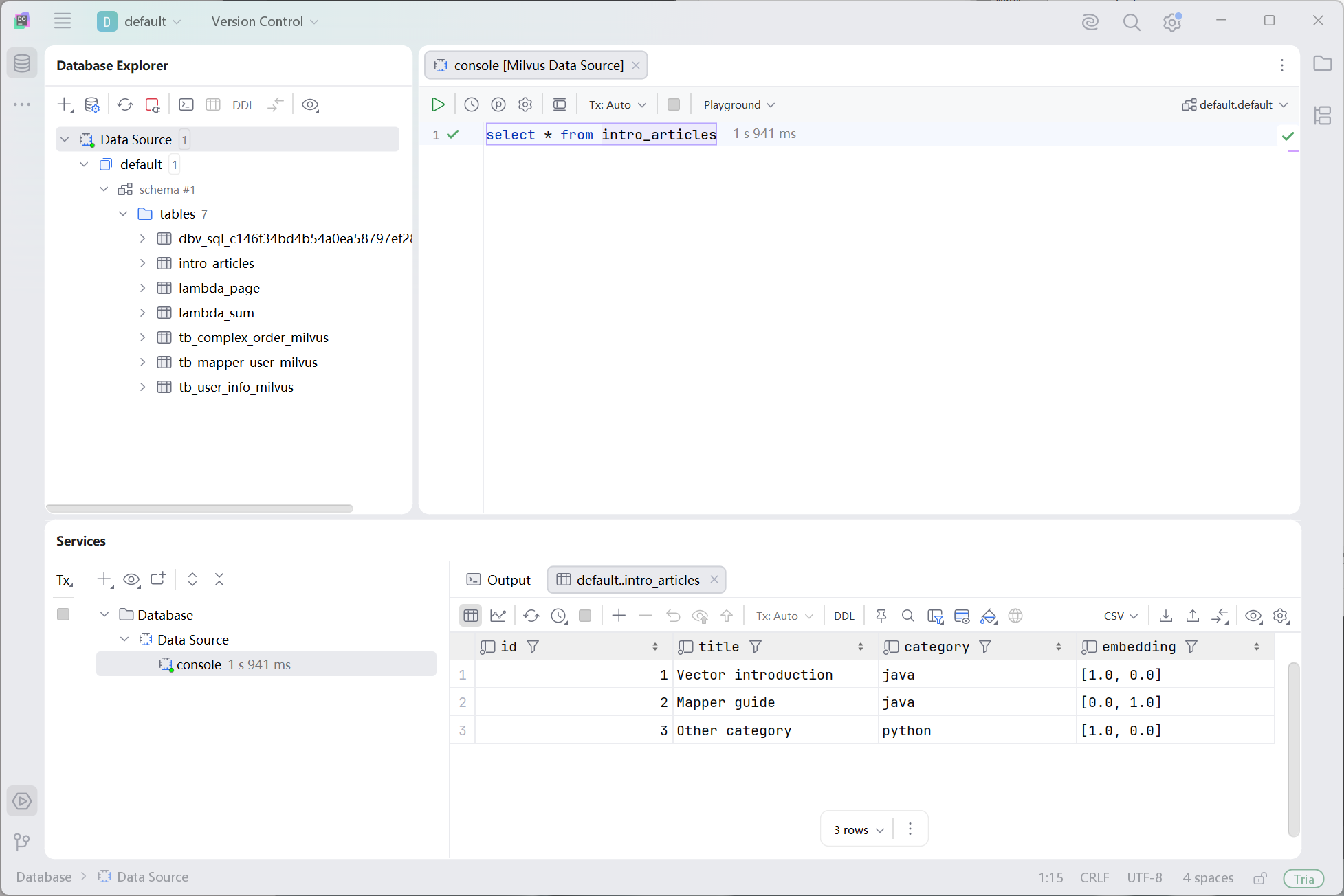
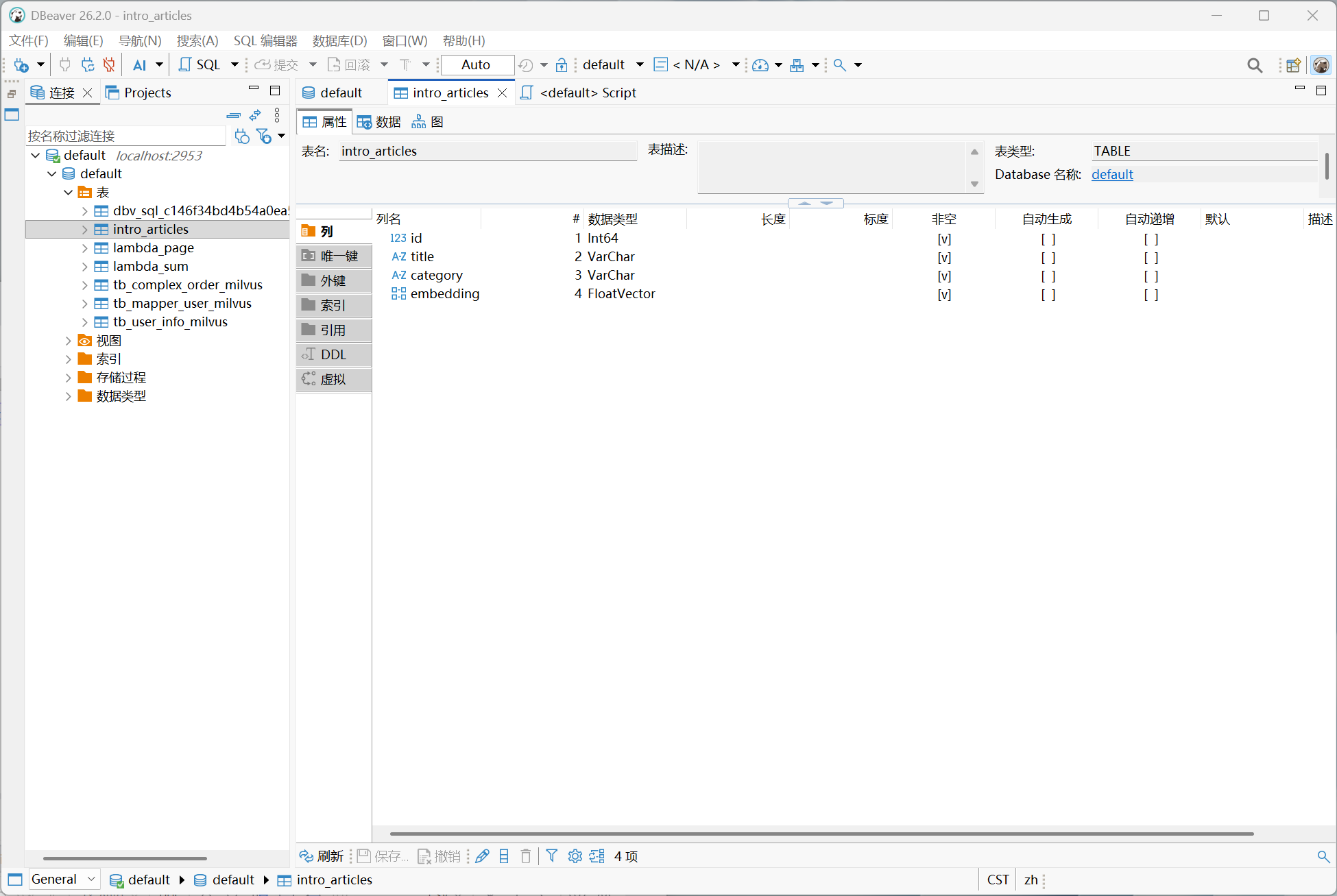
Download the alone driver from the Milvus SQL Client page. The driver requires Java 17 or later.
| Setting | Value |
|---|---|
| Driver name | dbVisitor Milvus |
| Driver file | Downloaded jdbc-milvus-6.8.1-alone.jar |
| Driver class | net.hasor.dbvisitor.driver.JdbcDriver |
| Host | 127.0.0.1, replaced with your Milvus address |
| Port | 19530 |
| Database | default, or another existing database |
DataGrip
- Open File → Data Sources → Drivers → +, name the driver, add the JAR under Driver Files → + → Custom JARs, and set Class to the driver class above.
- Add the following template under General → URL templates, then click Apply → Create Data Source.
- Select the template's connection type and enter the host, port, and database. Enter credentials if authentication is enabled, click Test Connection, and save. Set the query console's transaction mode to Auto and Switch schema to Disable.
jdbc:dbvisitor:milvus://{host}:{port}/{database}\?consistencyLevel=Strong
DBeaver
- Open Database → Driver Manager → New, name the driver, and select Generic.
- Add the JAR under Libraries → Add File. Set Class Name to the driver class above, Default Port to
19530, and URL Template to the template below. - Save the driver and create a connection with it. Enter the host, port, database, and credentials. Click Test Connection, then open the SQL editor with Auto-commit enabled.
jdbc:dbvisitor:milvus://{host}:{port}/{database}?consistencyLevel=Strong
jdbc:dbvisitor:milvus://127.0.0.1:19530/default?consistencyLevel=Strong
Set additional driver parameters in DataGrip's Advanced tab or DBeaver's Driver properties; see connection parameters for names and values. For the configuration UI, see DataGrip custom drivers and the DBeaver Driver Manager.
With the sample data from earlier sections ready, run this in the console:
SELECT id, title, score FROM intro_articles
WHERE category = 'java'
ORDER BY embedding <-> [1, 0] LIMIT 2;
The result grid shows Vector introduction and Mapper guide, with distances of 0 and 2. Change the category or query vector to compare results, then reuse the verified SQL in JDBC code or a Mapper.